
What IT teams and MSPs need to know about running multi-drive SED workflows with Opal Lock Premium.
Managing one self-encrypting drive is straightforward. Managing several across a single machine, a team, or a fleet is a different problem entirely. Each drive needs to be set up, locked, unlocked, audited, and eventually erased. Done one drive at a time, that process becomes repetitive, time-consuming, and harder to keep consistent.
This is the problem Opal Lock Premium is built to address. This post covers what multi-drive management in Opal Lock actually involves, which operations can be run across multiple drives at once, and what IT teams and MSPs should know before deploying at scale.
In a single-drive setup, the workflow is manageable. Scan, set up, lock, unlock, audit, and erase when needed. Each step is discrete and the stakes of a mistake are contained.
In a multi-drive environment, the same steps multiplied across many drives create real operational risk. A drive that is missed during a password rotation still has the old credentials. A drive that is not locked consistently becomes the weakest point in an otherwise secured fleet. A drive that is not properly erased before a device is retired creates a compliance gap that is difficult to close after the fact.
Consistency is the challenge. The more drives there are, the harder it is to keep every one of them in the same state.
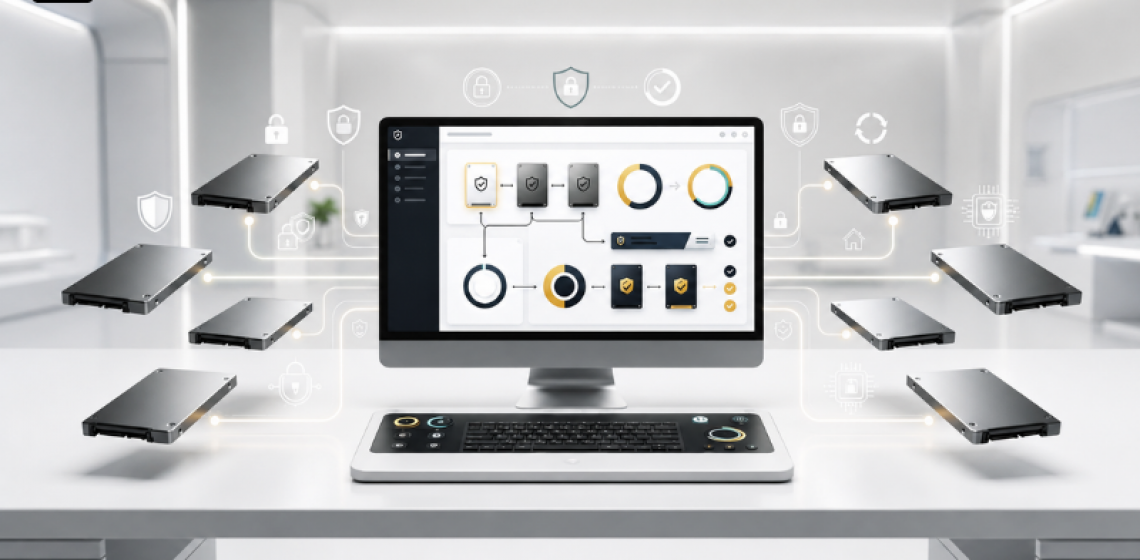
Opal Lock Premium includes the Multidrive Feature, which allows setup, lock, unlock, and password change operations to be performed across multiple drives with a single click. Instead of running each operation drive by drive, IT teams can select the drives they want to act on, choose the operation, and Opal Lock handles the rest.
The specific operations supported across multiple drives are setup, password change, lock, and unlock. This covers the most time-intensive parts of routine SED management, and removes the need to work through each drive individually for common tasks.
Premium also includes the Setup/Remove User feature, which allows a second password to be configured with limited authority. This is relevant in deployments where an administrator needs to retain full control over a drive while giving an end user access with a more restricted credential. The two passwords operate at different authority levels, which means the end user cannot perform administrative operations such as reverting or erasing the drive.
When using the Multidrive Feature, the process is straightforward. Drives are identified by scanning the system. Compatible drives appear in the interface. The IT administrator selects the drives to act on using checkboxes, chooses the operation, and runs it across all selected drives in one step.
This applies to the four supported operations: setup, password change, lock, and unlock. For teams managing several drives per machine or across multiple machines, this cuts down on the repetitive work that single-drive management requires.
Passwords saved to the system drive or a USB flash drive can also be used for automatic unlock when a connected SED is inserted, which is relevant for USB drive workflows in environments where drives move between machines.
The Query Drive and View Audit Log features are available across all regular editions of Opal Lock, including Premium. Each drive maintains its own on-drive event log, which records security activity at the hardware level rather than in the OS.
For IT teams managing multiple drives, this means each drive carries its own independently verifiable record. Those logs can be exported for review and documentation, and they persist even if the host system is wiped or replaced, because they are stored on the drive itself.
For MSPs and compliance-focused teams, this is practically useful: it provides a per-drive audit trail that can be produced for security reviews or incident response without relying on OS-level logs that may not have survived a system event.
When drives need to be retired, Opal Lock supports cryptographic erase using either the admin password or the PSID printed on the drive label. After a successful erase, a Certificate of Sanitization is generated. The certificate includes a log of the actions performed during the sanitization process.
In a multi-drive environment, this means each retired drive has its own documented erase record. For teams that need to demonstrate compliant decommissioning, having a per-drive certificate is more defensible than a general policy statement.
The Multidrive Feature covers setup, password change, lock, and unlock. For revert and sanitization, the Opal Lock User Guide is the reference for exact workflow steps and any per-drive requirements.
The Setup/Remove User feature in Premium allows a second password with limited authority to be configured on a drive. This is useful in environments where:
An IT administrator manages the drive at the admin level, and an end user needs to unlock and access it without having the ability to revert or erase it. The second password grants access without full administrative control, which aligns with a principle of least privilege approach to drive access in larger deployments.
In Premium, unlocking drives in the pre-boot OS environment using passwords stored on a USB happens automatically. This means the unlock step can be handled without manual password entry each time, which is relevant for environments where consistency and speed of access matter.
Before rolling out multi-drive management across a fleet, a few things are worth confirming:
Opal Lock runs on Windows 10, Windows 11, and Windows Server 2019 and 2022. All drives must support TCG Opal 1.0, 2.0 or Pyrite 1.0, 2.0. Secure Boot must be disabled per the Opal Lock User Guide. If Block SID is enabled on any drive, it may need to be disabled in BIOS before setup. The typical drive count supported per license is up to 5 drives including internal, per the shop page guidance.
For exact scope, drive limits, deployment rules, and the full multi-drive workflow, the Opal Lock User Guide is the definitive reference.
Opal Lock Premium and its Multidrive Feature are built for IT teams managing several SEDs per machine or across a fleet, and for MSPs who need to run consistent drive security operations across client environments without doing everything one drive at a time.
If your environment involves a single drive per machine and no delegated access requirements, Opal Lock Standard covers the full management workflow without the Premium additions. If the volume or the access structure of your deployment requires multi-drive operations or a second limited-authority password, Premium is the appropriate edition.
Compare editions and get started at fidelityheight.com/shops/
Ready to buy
Activate hardware encryption on compatible Opal drives in minutes. Select your edition and complete purchase below.
