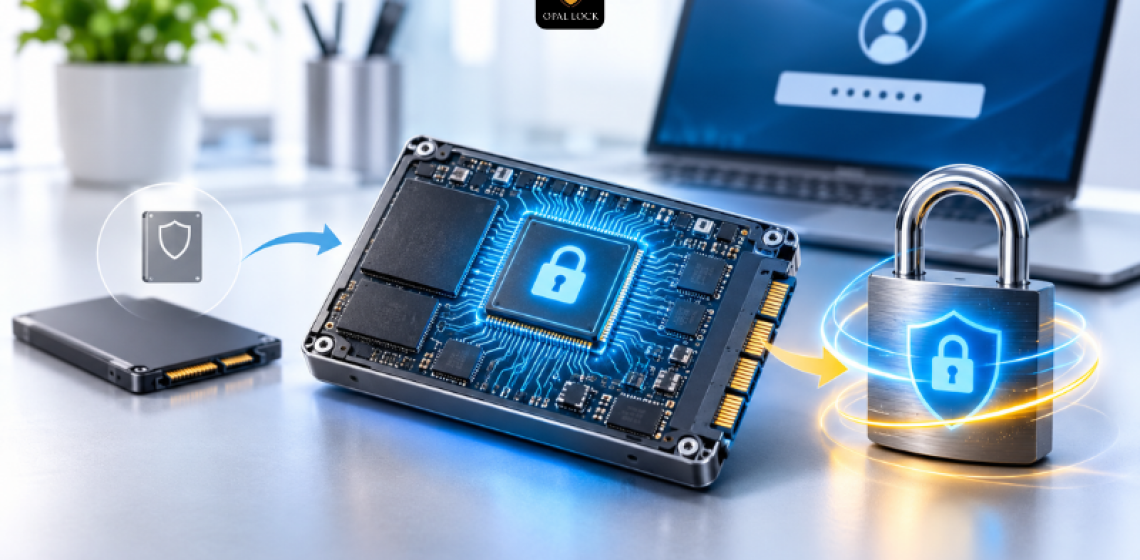
To enable hardware encryption on an SSD, you activate the encryption engine already built into a compatible TCG Opal drive and complete setup, which includes setting a password to turn on locking. Opal Lock by Fidelity Height is TCG Opal encryption software for Windows that does this. It does not add encryption to a standard drive. It gives you control over the encryption that a compatible drive already contains.
Is your SSD compatible?
Not every SSD can do this. Hardware encryption needs a drive built to TCG Opal 1.0, Opal 2.0, Pyrite 1.0, or Pyrite 2.0. A TCG Opal drive includes an encryption engine inside the drive controller that works independently of the host system.
Two points are worth knowing:
- Pyrite is not the same as Opal. A Pyrite drive requires authentication, but it does not encrypt the data.
- A drive with an encryption engine can still be unprotected. Until the drive is set up and locking is enabled, the engine is present but not protecting anything.
You do not have to guess. Opal Lock scans the system, identifies compatible drives, and shows their current status before any configuration begins.
Before you start
- Opal Lock runs on Windows 10 and 11 and Windows Server 2019 and 2022, and works with SATA, NVMe, and USB Opal drives.
- Secure Boot may need to be disabled, as described in the Opal Lock User Guide.
- If Block SID is enabled on a drive, it may need to be disabled in BIOS before setup.
- If you plan to use a pre-boot image, do not power down the system while it is written. This can take up to 5 minutes or more per drive.
Step by step: how to enable hardware encryption on an SSD
- Scan the system and check the drive’s status. Opal Lock lists the compatible drives it finds and shows each drive’s current state. This is the quickest way to confirm that your SSD supports hardware encryption.
- Set up the drive in Opal Lock. Setup is the main step. As part of it, you set a password to enable locking. From that point, the drive requires authentication to unlock.
- Choose how the drive will authenticate. On Standard and Premium editions, pre-boot authentication happens before the operating system loads. For a system drive, this means the drive stays locked until credentials are entered. Other unlock options include a bootable recovery USB or manual unlock.
- Know how locking behaves. A configured drive locks automatically on every power cycle and can also be locked manually from within the application.
- Confirm the drive is protected. Use the Query Drive feature to see the drive’s current state, locked ranges, and credentials. Restart the system and check that the drive asks for authentication.
- Review the audit log. The View Audit Log feature shows the drive’s on-board event log. Because the log is stored on the drive and not in the OS, it persists through OS wipes and system replacements.
Ready to set this up on your own drive?
Get Started with Opal Lock, or Compare Opal Lock Editions to see which one fits your drives.
Why hardware encryption holds where software cannot
Software encryption depends on the OS being present and intact. If the OS is bypassed or the drive is moved to another machine, that protection can be circumvented. Hardware-based drive encryption lives inside the drive controller and does not depend on the OS. A drive set up with Opal Lock remains locked regardless of which machine it is connected to.
If something goes wrong
- Interrupted pre-boot image write: if the process is interrupted, the image will not be written and the drive will be locked with no internal means of unlocking itself. Plan the write for a time when the system will not be powered down.
- Password problems: Opal Lock’s cryptographic erase can be authorized with the admin password or the PSID printed on the drive label. Erasing deletes the encryption key, so the data becomes permanently unrecoverable.
- Full deployment details: the Opal Lock User Guide covers the complete sequence and compatibility requirements.
Which Opal Lock edition do you need?
- Opal Lock Standard covers internal and external drives and includes pre-boot authentication.
- Opal Lock Premium adds multi-drive operations and a second limited-authority password for self-encrypting drive management across several drives.
- Opal Lock USB is for external USB Opal and Pyrite drives only.
Compare Opal Lock editions to find the right fit, or get started with Opal Lock on your compatible SSD.
Frequently asked questions
Can I enable hardware encryption on any SSD? No. The drive must be a compatible TCG Opal or Pyrite drive. Opal Lock does not add encryption to a standard drive. Pyrite drives require authentication but do not encrypt.
Is hardware encryption better than software encryption? Hardware encryption lives inside the drive controller and does not depend on the OS. A drive set up with Opal Lock stays locked whichever machine it is connected to, and whichever operating system is running on it.
What happens if I lose the password? The PSID printed on the drive label can be used to authorize a cryptographic erase. The erase deletes the encryption key and makes all data permanently unrecoverable, so it resets the drive and does not recover the data.
How do I securely erase an encrypted SSD later? Opal Lock performs cryptographic erase, which deletes the encryption key. A Certificate of Sanitization is generated automatically after a successful erase, providing documented evidence for compliance and audit purposes.
Ready to buy
Secure your drives. Buy your license now.
Activate hardware encryption on compatible Opal drives in minutes. Select your edition and complete purchase below.