
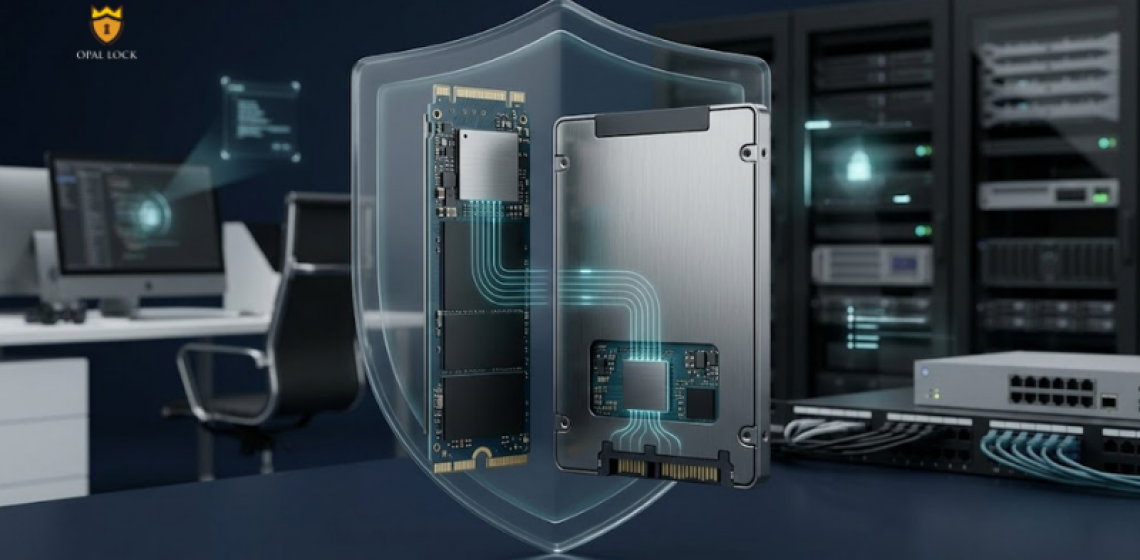
A closer look at how Opal Lock manages self-encrypting drives from setup to secure erase.
Data security is easy to talk about and hard to deliver. Most organizations rely on a combination of software tools, policies, and passwords, and still end up with gaps they can’t fully account for. The reason is straightforward: software-level security depends on the operating system being intact, the user behaving correctly, and the device staying in the right hands.
Hardware encryption removes most of those dependencies. It works at the drive level, independent of the OS, and stays active even when a device is lost, stolen, or decommissioned.
Opal Lock by Fidelity Height is a Windows application built to manage exactly this. It does not add encryption to a regular drive. Instead, it activates and controls the encryption engine already built into compatible TCG Opal and Pyrite self-encrypting drives, and gives users the tools to manage that security across the full drive lifecycle.
TCG stands for Trusted Computing Group, an industry standards body that defines specifications for hardware-based security. Drives built to TCG Opal 1.0 or 2.0, and Pyrite 1.0 or 2.0 standards, include a built-in encryption engine that operates independently of the host system.
The encryption is always running at the hardware level. What Opal Lock does is activate it, configure it, and give the user control over who can access the drive and under what conditions.
Setup starts with scanning the system to identify compatible drives and confirm their current status. Opal Lock detects which drives on the system are Opal-compatible and displays their drive information before any configuration begins, so users know exactly what they are working with.
Once a compatible drive is found, the user sets a password to enable locking. From that point forward, the drive requires authentication to unlock, and that authentication happens before the operating system loads on supported editions.
Once set up, a drive can be locked in two ways. The first is automatic: the drive locks on power cycle, meaning it secures itself every time the device is powered down without any user action required. The second is manual: users can lock the drive directly from within the Opal Lock application, without needing to restart.
Unlocking works through a pre-boot environment configured on the drive itself, a bootable recovery USB, or through a separate unlocked Windows system. Standard and Premium editions support pre-boot authentication, which allows a locked system drive to be unlocked before Windows loads.
For users who need a backup authentication method, Opal Lock Premium and Opal Lock Lite both support USB Password authentication, allowing a saved password on a USB drive to be used in place of manual entry.
Beyond locking and unlocking, Opal Lock gives users visibility into what is happening at the drive level. The Query Drive feature lets users view additional information about the drive’s state, locked ranges, and credentials directly from within the application.
The View Audit Log feature provides access to the drive’s on-board event log. Because this log is stored on the drive itself rather than in the OS, it remains a reliable record even if the host system is compromised, wiped, or replaced. This makes it directly useful for compliance reviews and incident response documentation.
When a drive needs to be repurposed or retired, Opal Lock provides two options. Users can remove the lock and keep all data intact, or they can revert the drive using a cryptographic erase that makes all data permanently unrecoverable. The revert option works using either the admin password or the PSID (Physical Security ID) printed on the drive label.
Cryptographic erase is instant: once the encryption key is deleted, the data on the drive is unreadable without recovery. A Certificate of Sanitization is generated after a successful erase, providing documented evidence for compliance and audit purposes.
For IT teams and organizations managing more than one device, Opal Lock Premium includes a multidrive feature that allows setup, password changes, and lock or unlock operations to be performed across multiple drives in a single click.
Premium also supports a Setup/Remove User feature, which allows a second password to be configured with limited authority. This is useful in enterprise deployments where an administrator and an end user may need separate access levels on the same drive.
Opal Lock supports SATA, NVMe, and USB drives that comply with TCG Opal 1.0, Opal 2.0, Pyrite 1.0, or Pyrite 2.0 standards. It runs on Windows 10, Windows 11, and Windows Server 2019 and 2022.
For users who need to unlock compatible USB drives without a paid license, Opal Lock Lite is available as a free version with a limited feature set.
Software encryption protects data through the operating system. If the OS is bypassed, corrupted, or the drive is removed from the machine and placed in another system, software encryption can often be circumvented.
Hardware encryption in a TCG Opal drive works differently. The encryption engine lives inside the drive controller. It does not depend on the OS being present or intact. A drive set up with Opal Lock will remain locked and unreadable even if it is removed from its original machine, connected to a different system, or accessed through a hardware interface directly.
This is what makes SED-based encryption a reliable foundation for endpoint security, particularly for organizations managing laptops, portable drives, or devices used in high-risk environments.
Opal Lock is not a tool that adds encryption. It is a tool that makes the encryption already inside a compatible drive usable, manageable, and auditable.
From the moment a drive is set up to the point where it is cryptographically erased and documented for retirement, Opal Lock gives users and IT teams the control and the paper trail that real drive security requires.
Download Opal Lock and start managing your self-encrypting drives today.
Ready to buy
Activate hardware encryption on compatible Opal drives in minutes. Select your edition and complete purchase below.
