
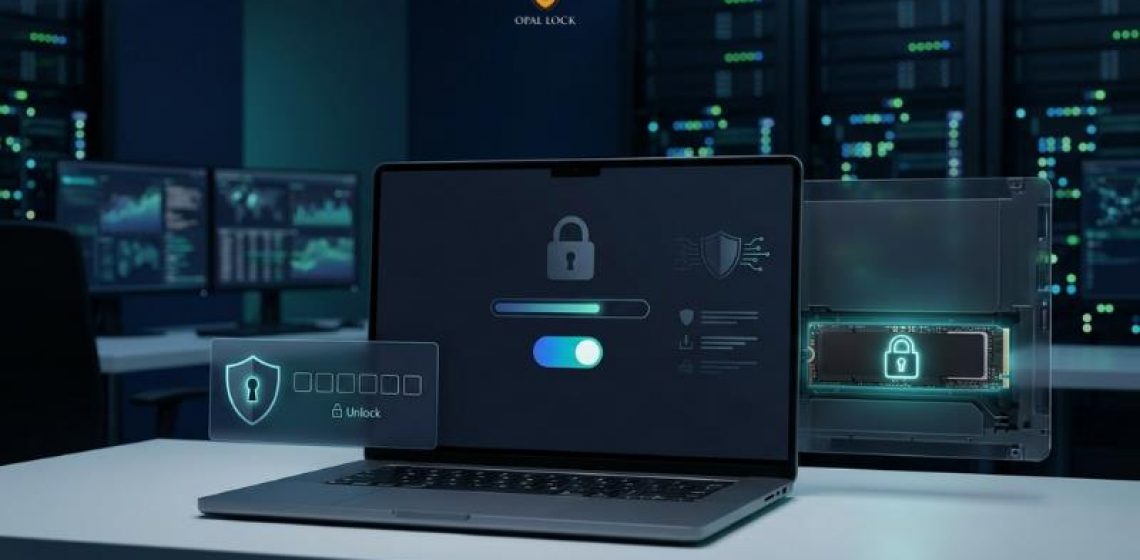
Protecting sensitive data starts with strong encryption. Self-Encrypting Drives (SEDs) provide a built-in, hardware-based approach to encryption that operates without the performance overhead often associated with software solutions. If your system includes an SED, enabling its encryption capabilities can significantly strengthen your data security. Below is a step-by-step guide to help you get started.
Before proceeding, confirm that your storage device supports SED functionality. This information is generally available in the manufacturer’s specifications or through system diagnostic tools. Look for terms such as SED, TCG Opal, or Opal compliance.
If your current drive does not support these standards, you may need to explore alternative encryption methods or upgrade to a compatible drive.
Although encryption is handled directly by the drive’s hardware, a configuration utility is usually required to enable and manage it. Use software specifically designed for SED environments and follow the setup instructions carefully.
During configuration, ensure that hardware-based encryption is selected where applicable to fully utilize the drive’s capabilities.
Once encryption is enabled, it’s important to regularly monitor the drive’s status using the selected management tool.
Encryption keys and recovery credentials should always be stored securely and backed up. This becomes especially critical in scenarios involving device transfer, repurposing, or disposal, where data protection must remain intact.
For a more streamlined and secure approach to managing hardware encryption and pre-boot authentication, Opal Lock offers a purpose-built solution. Designed in alignment with the Trusted Computing Group’s Opal 2.0 specification, it enables encryption at the hardware level before the operating system loads.
This ensures that data remains protected from the moment the device is powered on. By securing access at the pre-boot stage, it helps defend against advanced threats and unauthorized access attempts that may bypass traditional software-based protections.
Opal Lock simplifies both the activation and ongoing management of SED encryption, making it a practical solution for individual users as well as enterprise IT environments seeking deeper and more resilient data protection.
